Show Bigger Savings with Compare-at Price in Your Shopify Bundles
Your bundle discounts are great—but are your customers seeing just how great they are? If your crossed-out prices only reflect your current selling price, you might be leaving perceived value on the…
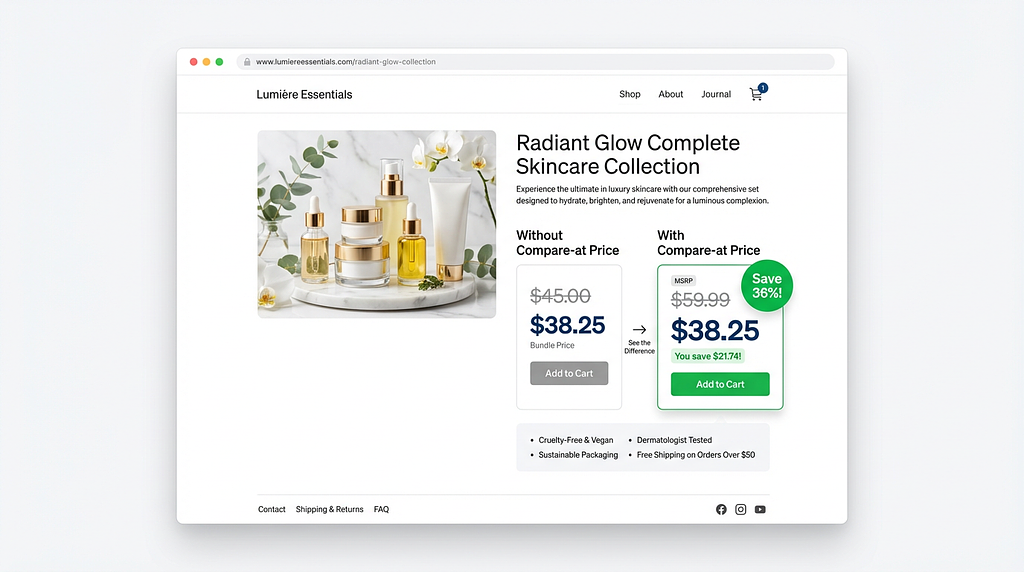
Your bundle discounts are great—but are your customers seeing just how great they are? If your crossed-out prices only reflect your current selling price, you might be leaving perceived value on the table. With our new "Use compare-at-price for crossed-out price" feature, your bundles can now reference Shopify's compare-at price (MSRP) as the strikethrough price, making your bundle deals look even more compelling. Compare-at price comparison
What is the Compare-at Price?
In Shopify, every product can have two prices:
Price — the current selling price your customer pays
Compare-at price — the original or MSRP price, often shown as a strikethrough to indicate a sale
Many merchants already use compare-at pricing on their product pages to show customers that a product is discounted from its original retail price. But until now, bundle apps would only use the active selling price as the crossed-out reference point—missing the opportunity to show the full extent of the deal.
The Problem: Small Perceived Savings
Let's say you sell a product with:
Compare-at price (MSRP): $59.99
Current selling price: $45.00
Bundle discount: 15% off
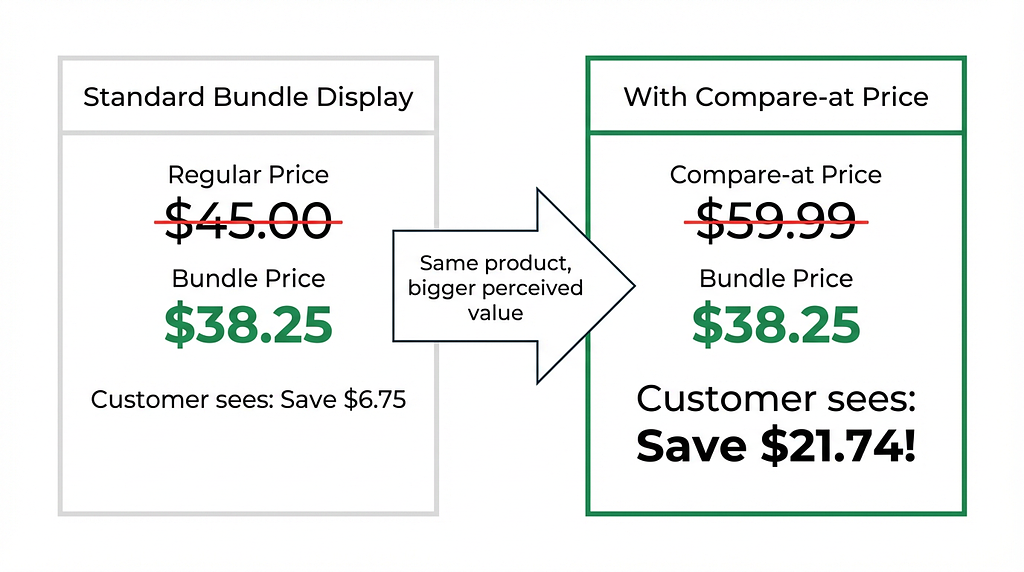
Without compare-at price enabled, your bundle shows:
$45.00 → $38.25 Customer perceives: "I save $6.75"
With compare-at price enabled, your bundle shows:
$59.99 → $38.25 Customer perceives: "I save $21.74!"
Same product. Same bundle price. But a 3x bigger perceived discount.
Perceived savings
How to Enable It
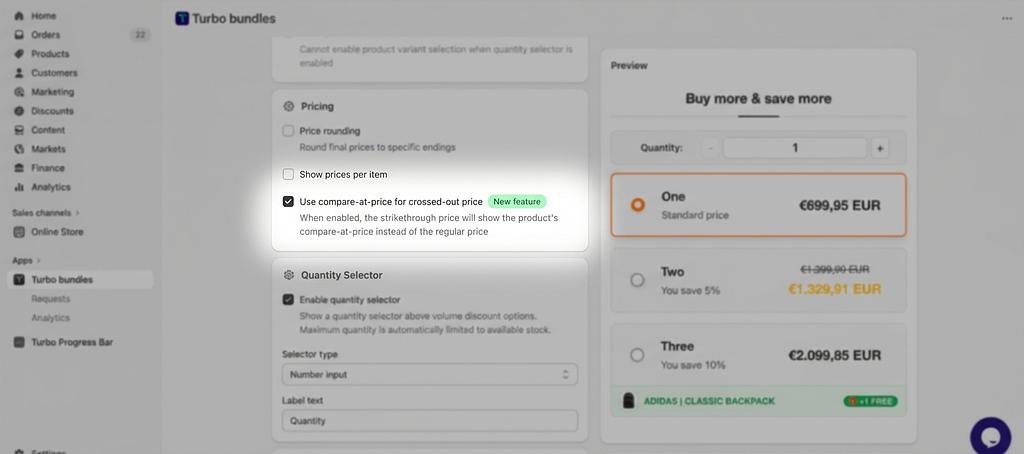
We've made this incredibly simple—just one checkbox:
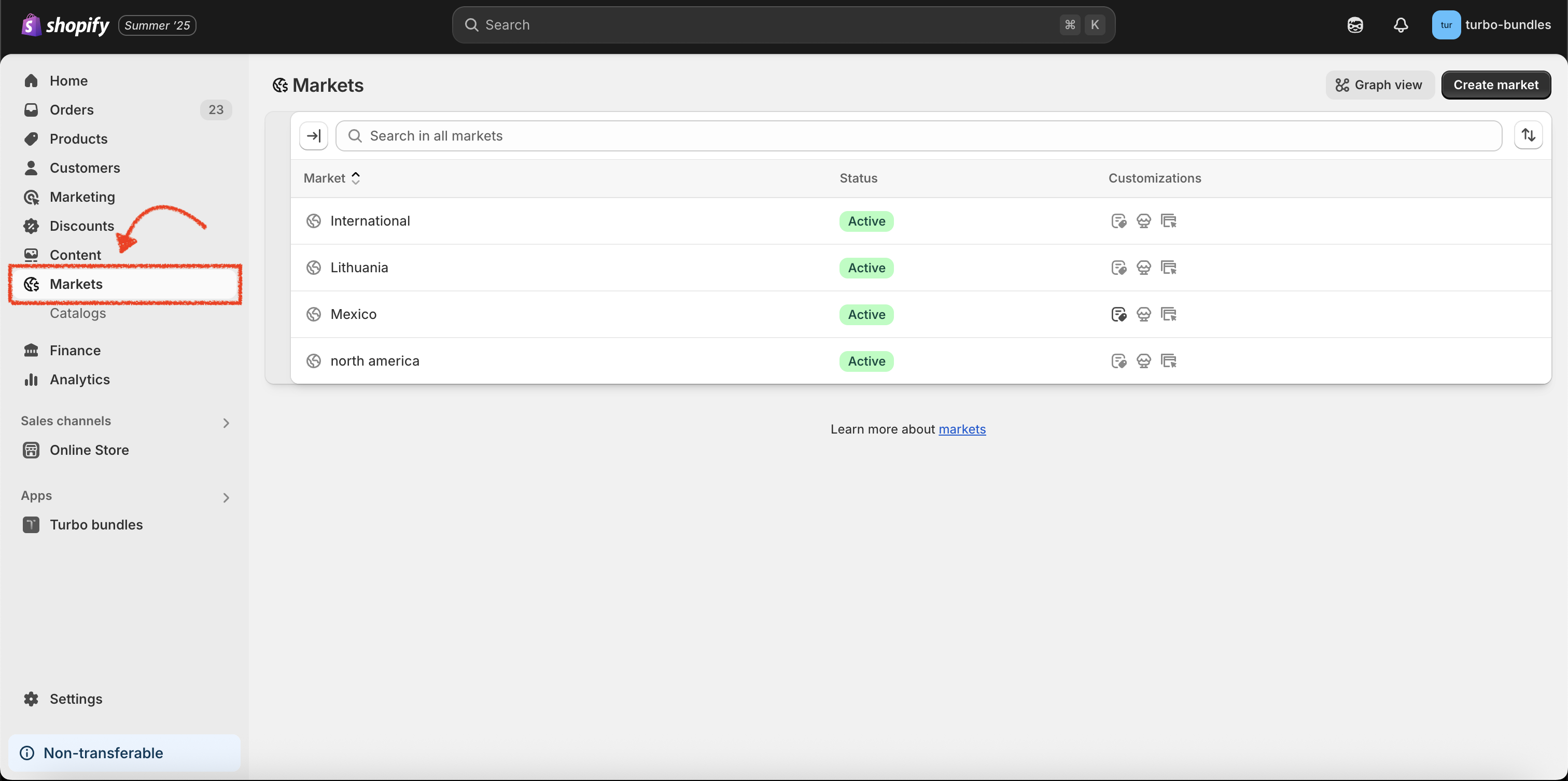
Open the Turbo Bundles app in your Shopify Admin
Create a new campaign or edit an existing one
Scroll to the Discount & Pricing section
Check the box labeled "Use compare-at-price for crossed-out price"
Save and publish your campaign
That's it. The feature works across all three bundle types:
Volume Discounts — "Buy 2, get 15% off" with MSRP as the strikethrough
Mix & Match — combo bundles with individual item compare-at prices
Frequently Bought Together — upsell bundles showing the full perceived savings
Bundle configuration
Smart Behavior: Works Even Without a Discount
Here's a detail merchants love: if your bundle has no additional discount applied (discount type set to "No discount"), but the product's compare-at price is higher than its selling price, the bundle will still show a visual discount. The compare-at price appears as the strikethrough, and the regular selling price appears as the "deal" price.
This is perfect for merchants who want to highlight existing product-level sales within their bundle UI without stacking additional discounts.
Why This Matters for Conversions
Pricing psychology research consistently shows that anchor pricing—showing a higher reference price next to a lower actual price—significantly increases purchase intent. By anchoring your bundle price against the compare-at price (MSRP), you:
Increase perceived value — customers feel they're getting a bigger deal
Reduce purchase hesitation — the savings are immediately obvious
Stay honest — you're using Shopify's native compare-at price, not inflated numbers
Real-World Use Cases
Fashion & Apparel
Seasonal markdowns are common. Your product might already be on sale from $80 to $55. With compare-at pricing enabled in your bundle, a "Buy 2 for 10% off" deal shows $80 → $49.50 instead of $55 → $49.50. The customer sees a 38% savings from MSRP rather than a modest 10%.
Health & Beauty
Products with manufacturer's suggested retail prices (MSRP) benefit enormously. A skincare bundle that shows savings from the MSRP communicates premium value while still offering an attractive deal.
Electronics & Accessories
Tech products often have list prices that differ from street prices. Show customers how much they're saving compared to the manufacturer's price when buying accessories together.
Frequently Asked Questions
What happens if a product doesn't have a compare-at price set?
No problem. The feature gracefully falls back to the regular selling price for that product. If you have a mix of products—some with compare-at prices and some without—each product will show the best available reference price.
Does this work with variant-specific pricing?
Yes! When a customer selects a different variant on the product page, the bundle prices update instantly to reflect that variant's compare-at price and selling price. No page refresh required.
Will this affect the actual discount my customers receive?
No. This feature only changes what's displayed as the crossed-out price. The actual bundle discount calculation and the price customers pay remain exactly the same.
Does it work with Shopify's EU compare-at price regulations?
Yes. If you have Shopify's "Hide compare-at prices for European Economic Area (EEA) customers" setting enabled, those regulations will still be respected. For more details, see our guide on why compare-at prices might not show for your bundles.
Get Started Today
The compare-at price feature is available right now for all Turbo Bundles merchants—no plan upgrade required. Just enable the checkbox and watch your bundle deals become more compelling.
Install Turbo Bundles if you haven't already, or open the app in your Shopify Admin to enable this feature on your existing campaigns.
Have questions about setting up compare-at pricing for your bundles? Reach out to our support team—we're happy to help!