The Turbo Bundles widget appears on your product pages automatically — no manual setup required. But if you want full control over where it sits (above the price, below the Add to Cart button, inside a tab), you can place it as a Shopify theme app block. This guide walks you through it in under two minutes.
What you'll need
- The Turbo Bundles app installed on your Shopify store
- A theme that supports Online Store 2.0 app blocks (any theme published since 2021)
- Admin access to your Shopify store
How to reposition the widget
- Open your Shopify theme customizer — From your Shopify admin, go to Online Store → Themes and click Customize on your active theme.
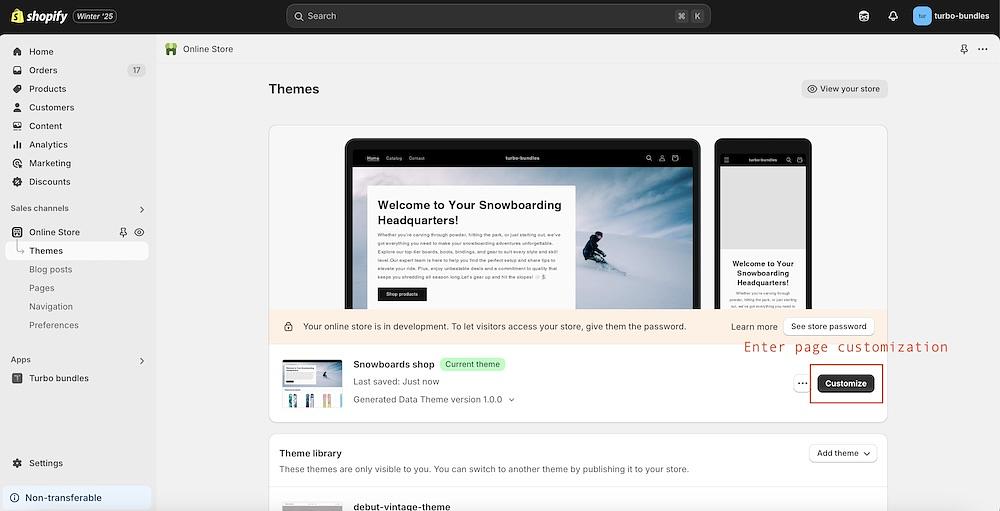
Shopify admin Themes page with the Customize button highlighted. - Switch to the Product template — In the theme editor top bar, switch from Home page to the Product template so your changes apply to product pages.
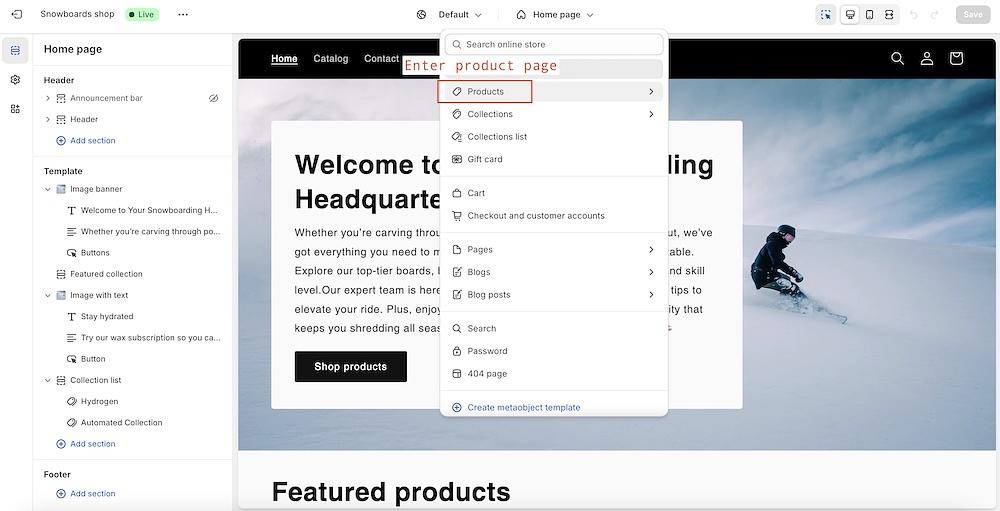
Theme editor template dropdown switched to the Product template. - Open a default product — Pick the product you want to preview. The Turbo Bundles widget renders against this product's price and variants in real time.
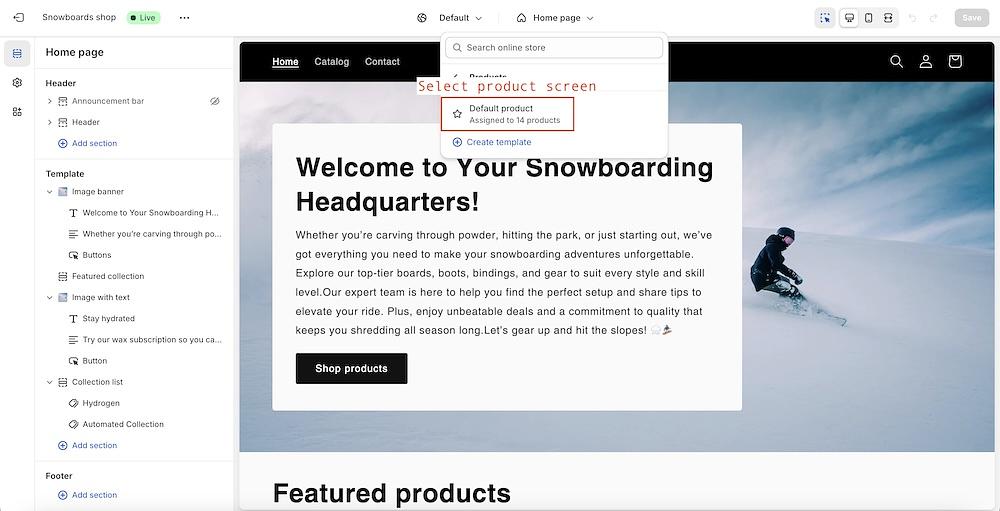
Theme editor showing the default product page with the sidebar sections. - Add an app block to Product information — In the left sidebar, expand Product information (or your theme's equivalent section) and click Add block.
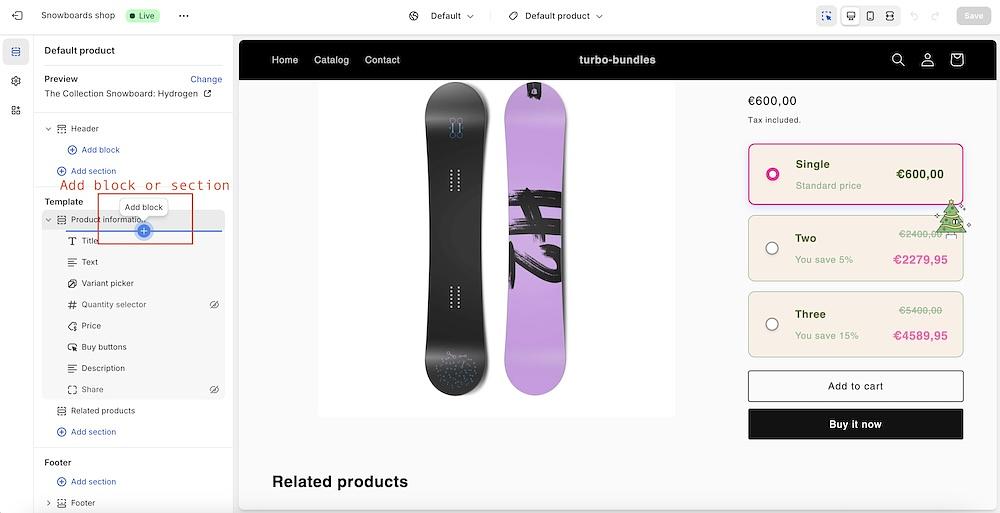
Add block menu open inside the Product information section. - Choose the Turbo Bundles app block — Under Apps, select Turbo Bundles. The block is added to the section and is ready to position.
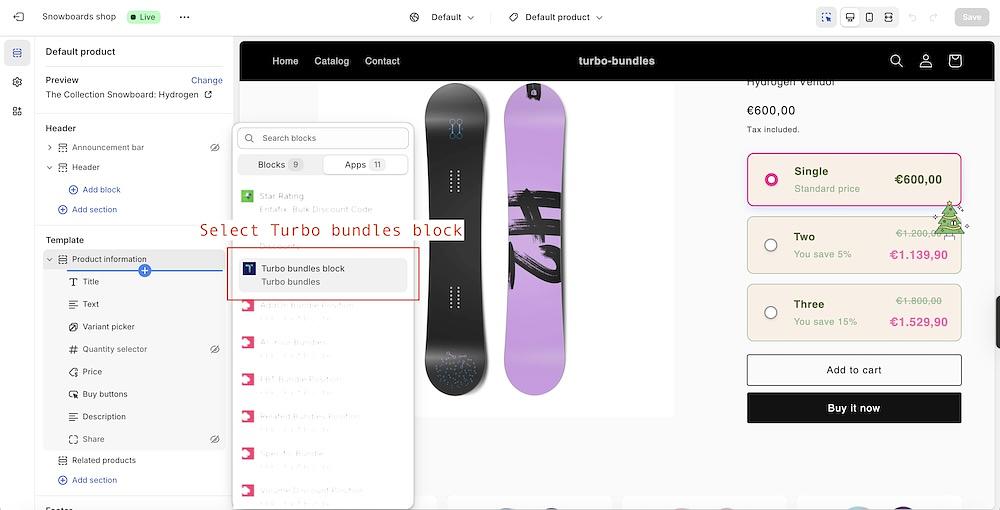
App blocks list with Turbo Bundles selected. - Verify the live preview — The preview pane updates instantly. Confirm the widget is rendering the correct campaigns for the product you're viewing.
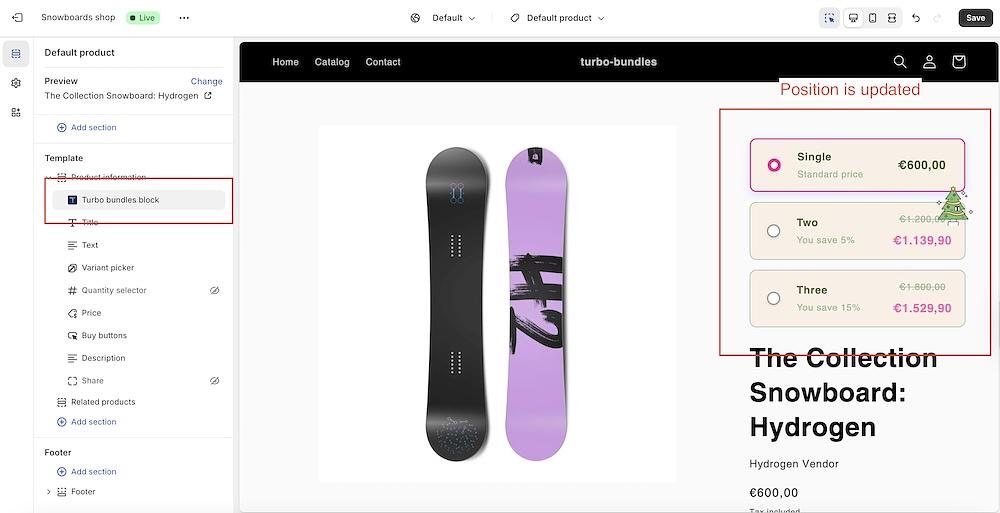
Theme preview showing the Turbo Bundles widget on the product page. - Drag the block to its final position — Grab the block in the sidebar and move it above or below other blocks (price, variants, Add to Cart, description) until it sits where you want, then Save.
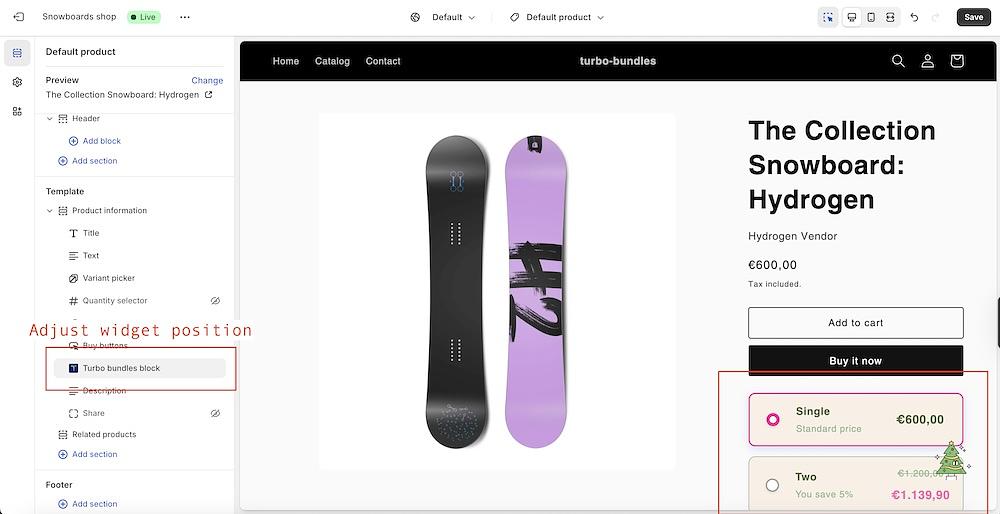
Reordering the Turbo Bundles block in the section sidebar.
Removing the widget from a specific product
If you ever want to remove the widget from a single product, delete the Turbo Bundles app block from that template, or use a different template for products that shouldn't show bundles.
Frequently Asked Questions
Will the widget still appear automatically on other products?
Yes. Manually placing the app block on one product template doesn't change automatic placement on other templates. The widget still loads on all eligible product pages.
What if my theme doesn't support app blocks?
Vintage themes (pre-Online Store 2.0) don't support app blocks. The widget still works on those themes through our automatic placement, but custom positioning isn't available without theme code edits. Contact support and we'll help.
Can I place the widget outside the product information section?
The widget needs to be inside a section that contains a product form (the "Add to cart" form), because it hooks into that form to submit bundle selections. Most themes only have one such section per product page.
Need help?
The fastest way to reach us is the in-app chat inside Turbo Bundles. You can also email us at [email protected].