How to enable Turbo Quantity Bundles in Your Store
Published on June 20, 2025 by Skomantas
Learn how to reposition or embed the Turbo Bundles widget into your store’s page builder.
The Turbo Bundles app effortlessly adds its widget to your product pages automatically, requiring no manual setup. However, the widget snippet is flexible and can be placed or embedded in other locations within product details or product information, using app block
In This Guide:
- Overview of the widget snippet
- Repositioning the widget on product pages
Widget Snippet Overview
Before exploring placements, let’s understand the key elements needed for the Turbo Bundles widget to function:
- Product - product is selected automatically, but widget must be placed in product information or product details section
- Form - a container that triggers the "add to cart" action must be present.
- Form Submit Button - The widget uses the store’s native form submit button.
Widget Repositioning on Product Pages
Turbo Bundles app automatically places its widget in the first "add to cart" form on your product page. To customize its placement (e.g., below the "Add to Cart" button):
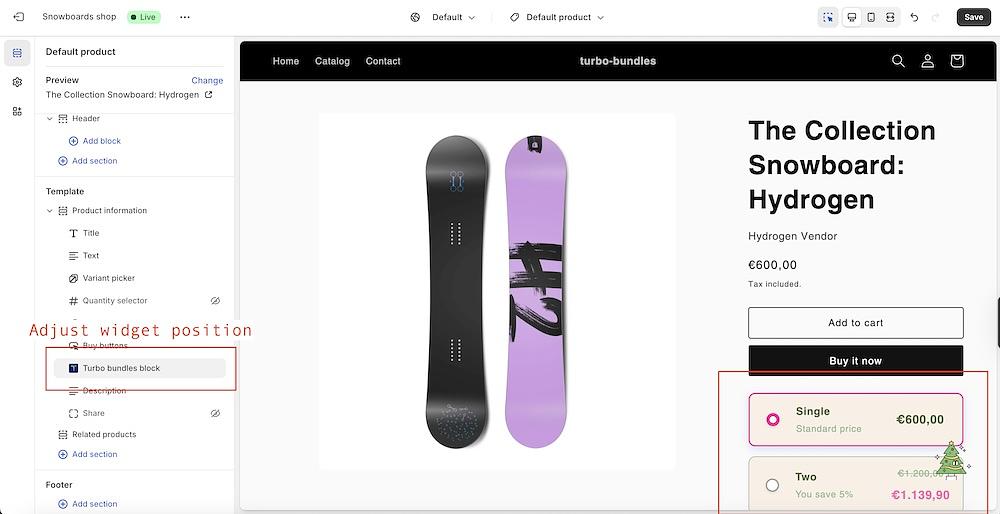
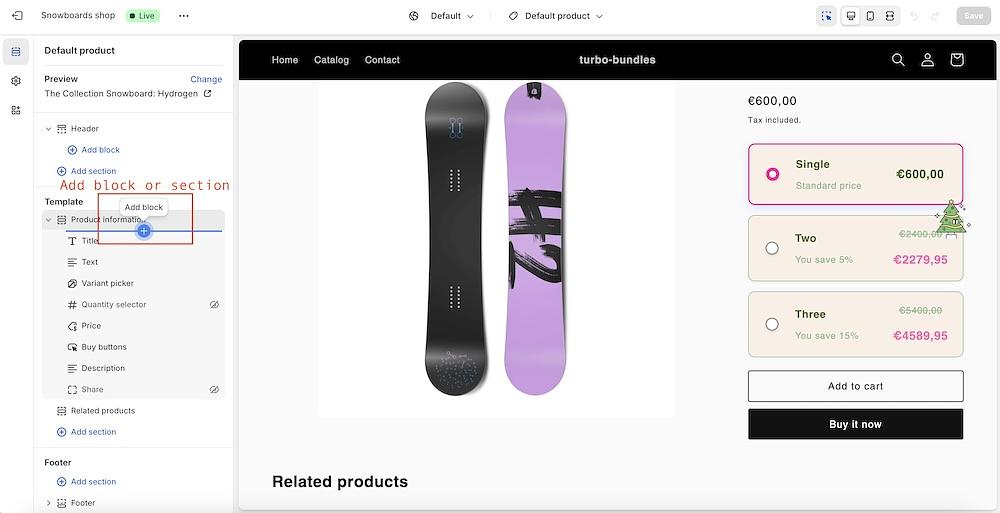
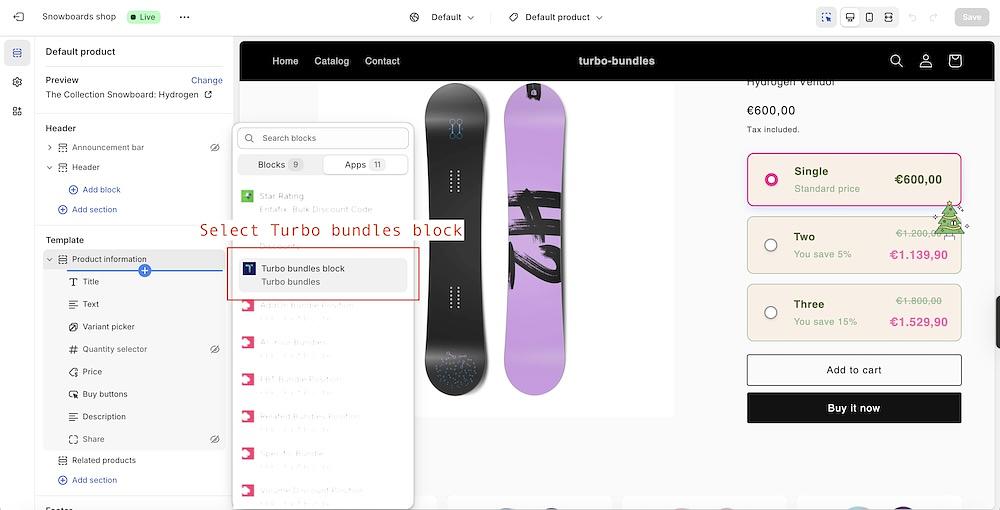
Add section or block with the turbo-bundles block to the product information/details section:
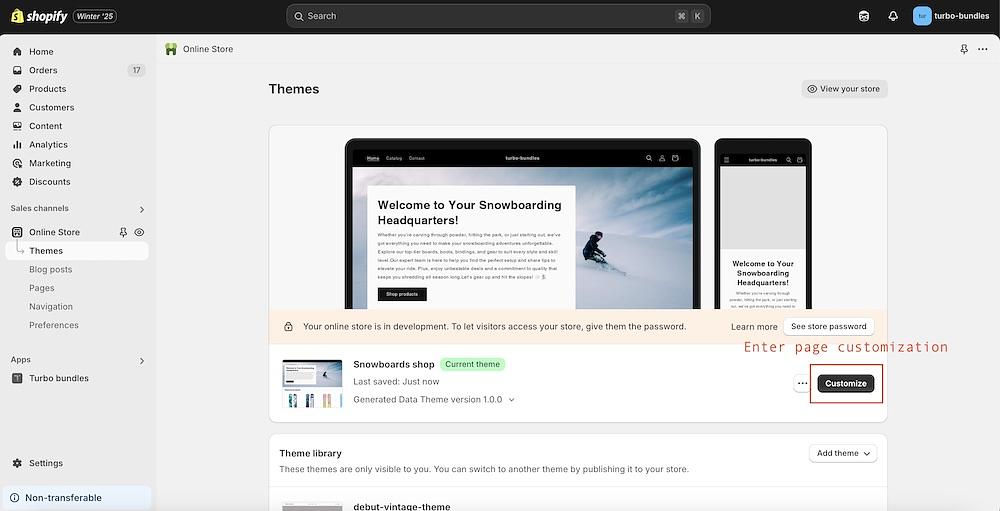
1. Go to page customization
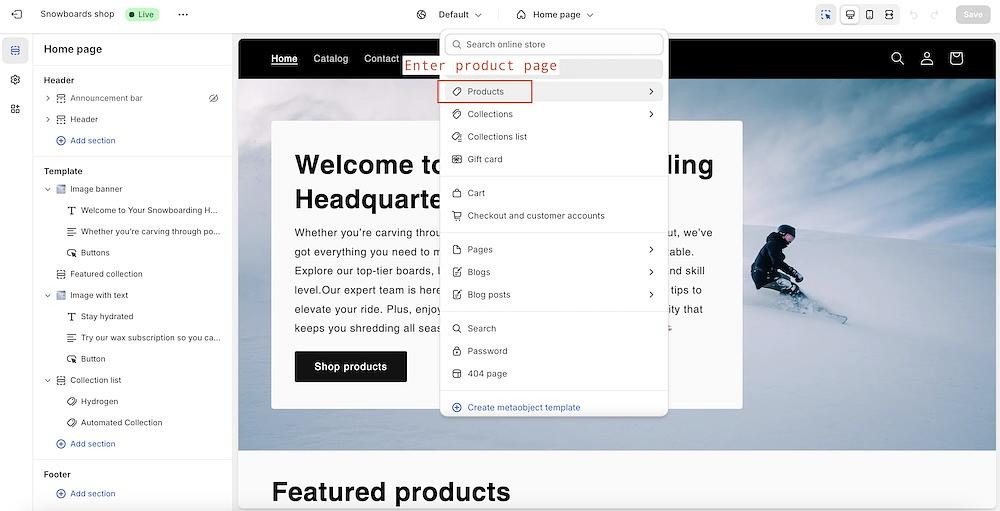
2. Enter product page
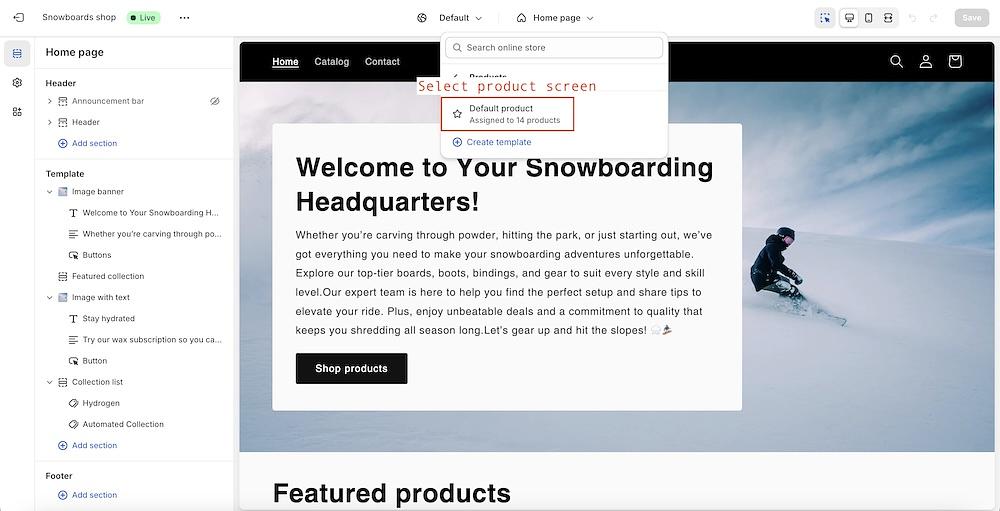
3. Select product screen
4. Add block or section
5. Select Turbo bundles block
6. Now preview is updated
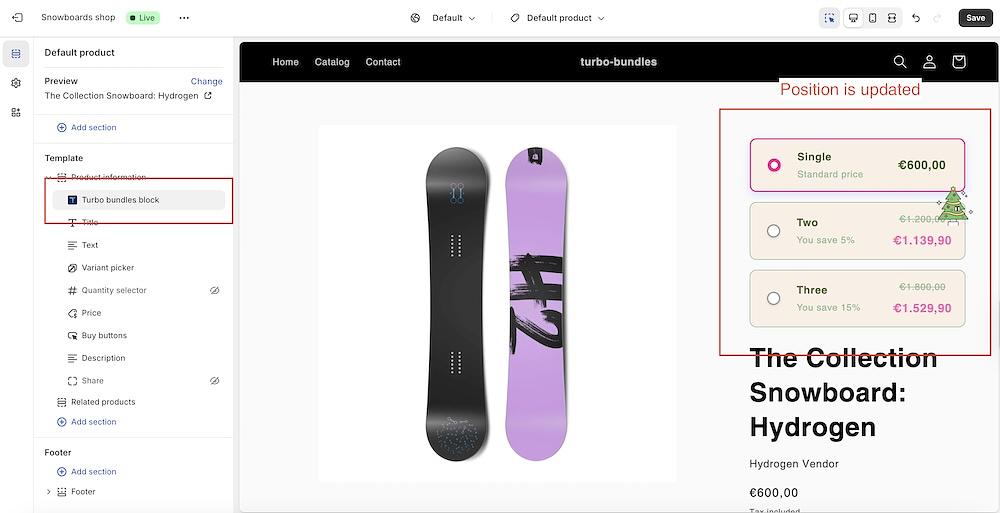
7. Adjust widget position